Video Guide to setup SSL for OpenVPN
Step 1. Generate your CSR and Private Key
What is a CSR? A Certificate Signing Request (CSR) is a vital element in obtaining digital certificates for securing online communications. Used in public key infrastructure (PKI), a CSR is a formal request submitted to a Certificate Authority (CA), containing essential details and a public key. Its function is to validate the requesting party's legitimacy, facilitating the issuance of a digital certificate. The CSR is generated alongside a private key — either directly on your server using OpenSSL or through our CSR Generator Tool. For this guide, navigate to SSLTrust's CSR Generator and generate your CSR and Private Key.
Note: Save the generated Private Key (as a PEM file on your computer via Notepad) and CSR on your device. This might come in handy if you want to re-do the configuration. Once generated, the CSR will be submitted to your CA to obtain your SSL certificate. This process enables secure encrypted communication for websites, email, and network connections, playing a pivotal role in upholding the integrity and confidentiality of digital interactions.
Step 2. Order and Configure your SSL Certificate
With your CSR and Private Key ready, the next step is to obtain your SSL certificate. This digital credential is what will authenticate your OpenVPN server and activate its full encryption capability. For this guide, we will use a Domain Validated (DV) SSL certificate from Sectigo, a globally trusted issuer. We recommend ordering through SSLTrust for a streamlined process backed by our customer support and money-back guarantee. If you prefer a fully managed solution to save time and ensure a flawless configuration, consider our Secure Shield Zero Install SSL service. For any questions about the best certificate for your specific needs, our Sales Team is ready to provide personalised guidance depending on your use case.
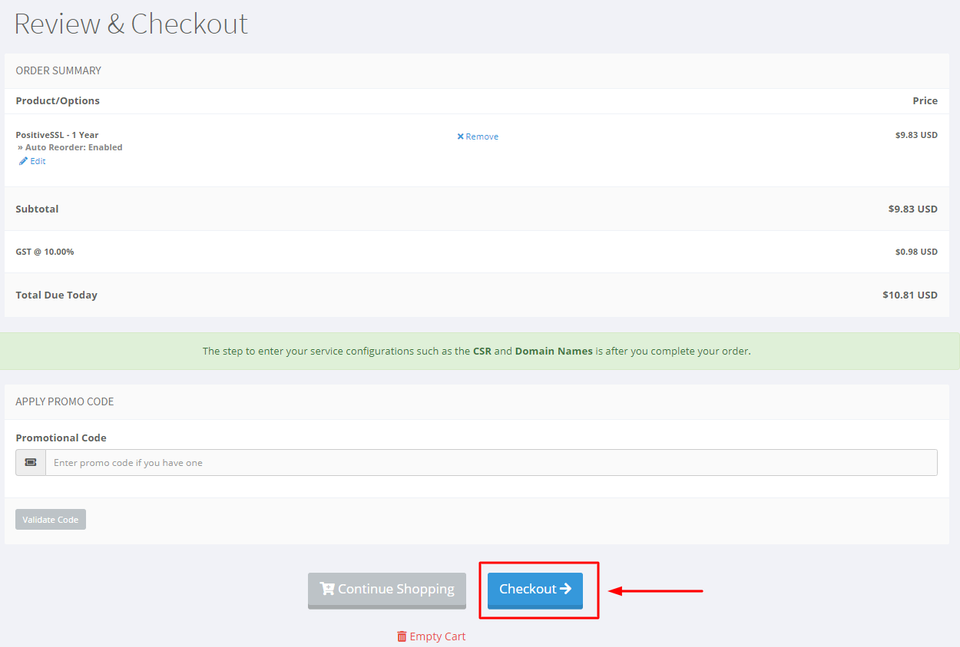
1: Once you've added the SSL Certificate to your cart, you can now click on Checkout to complete the process.
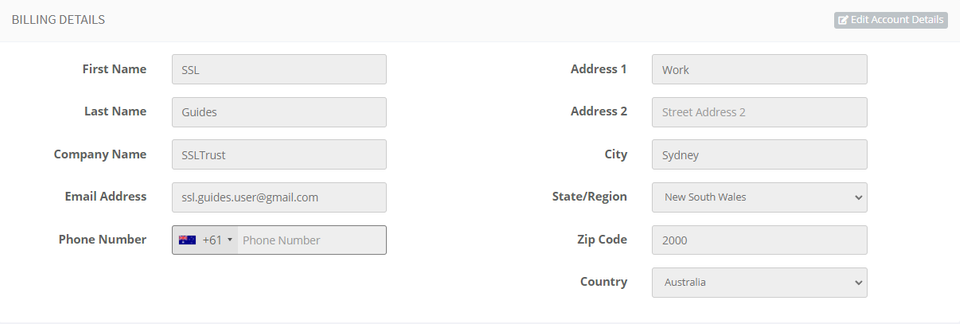
Fill in your account details
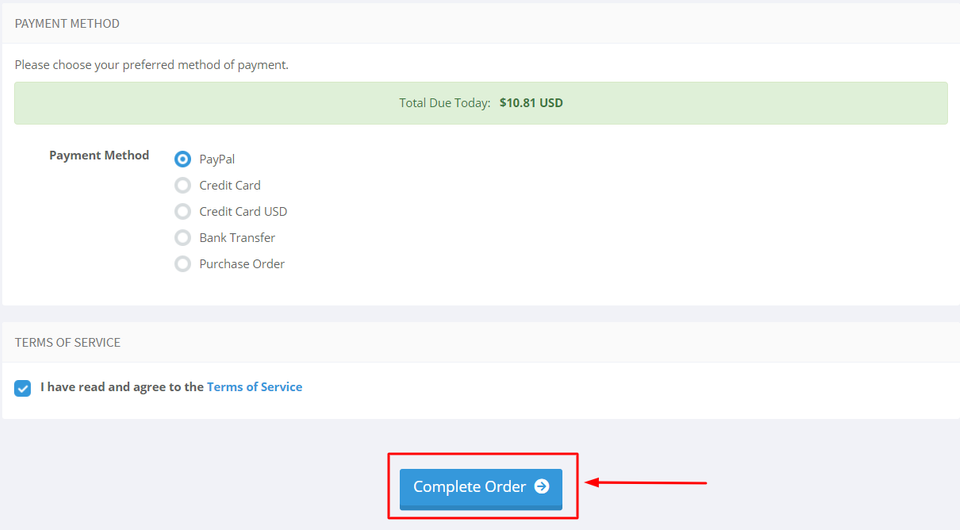
Choose your preferred mode of payment and click on checkout.
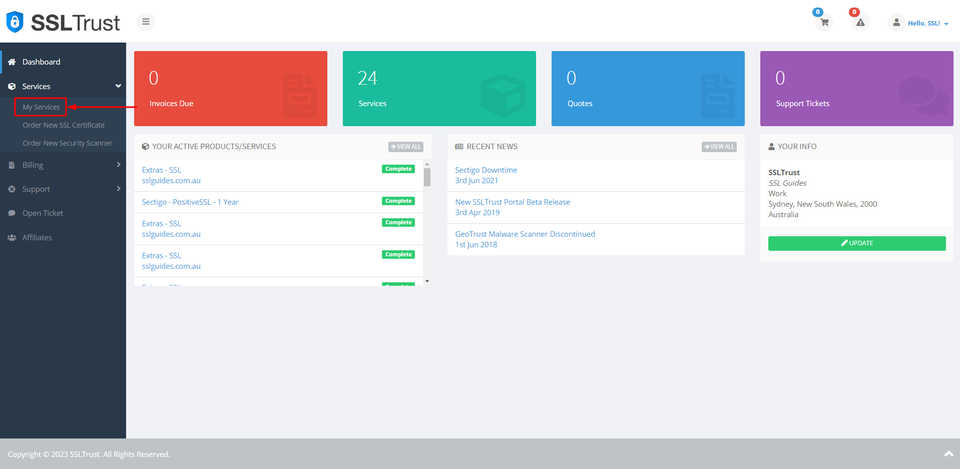
2: After you have purchased the SSL Certificate, you can start the configuration process. This can be started by going into your SSLTrust account and managing your recent purchase. Head over to the SSLTrust Dashboard and under Services, select My Services.
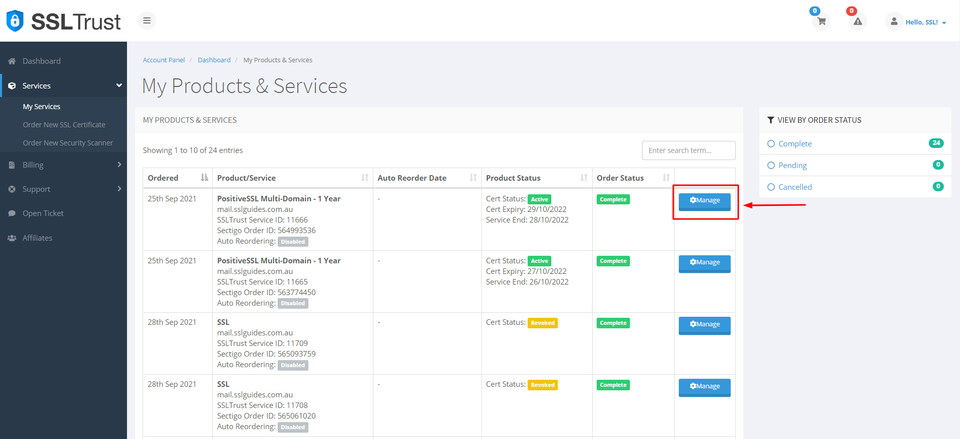
You should be able to see your purchased certificate and order status, now click on Manage
This will take you to the Product Details of your SSL Certificate. Click on start configuration to do the configuration yourself or you can provide the URL below to the appropriate person to complete the configuration for you.
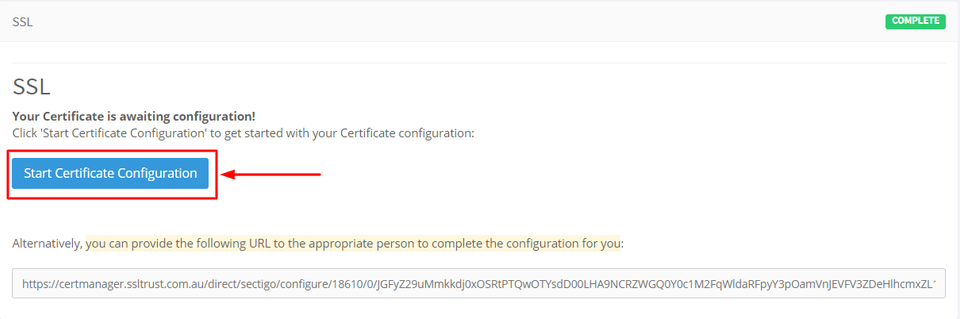
3: Copy and paste the previously generated CSR (Certificate Signing Request) which should include:-
text
-----BEGIN CERTIFICATE REQUEST-----
-----END CERTIFICATE REQUEST-----
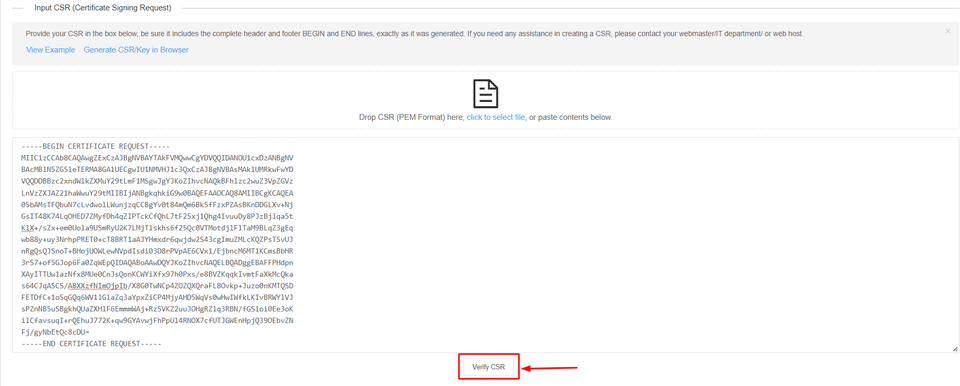
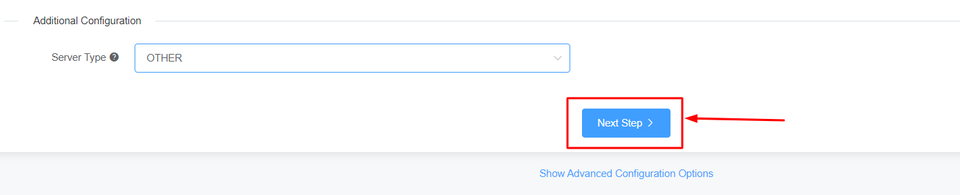
Then, click on Verify CSR. If the CSR details match the inputs you've entered before, you can now proceed or else generate a new CSR with proper details.

Select the Server Type as and click on Next Step>
4: Fill in your contact information
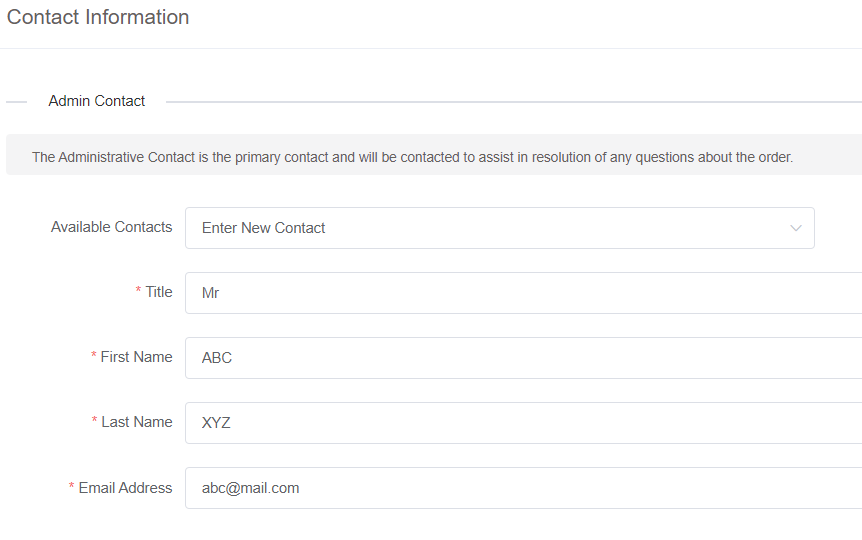
If you have a technical contact managing the certificate for you, please enter their details. They will also have permission to manage the Certificate and will be sent renewal reminders.
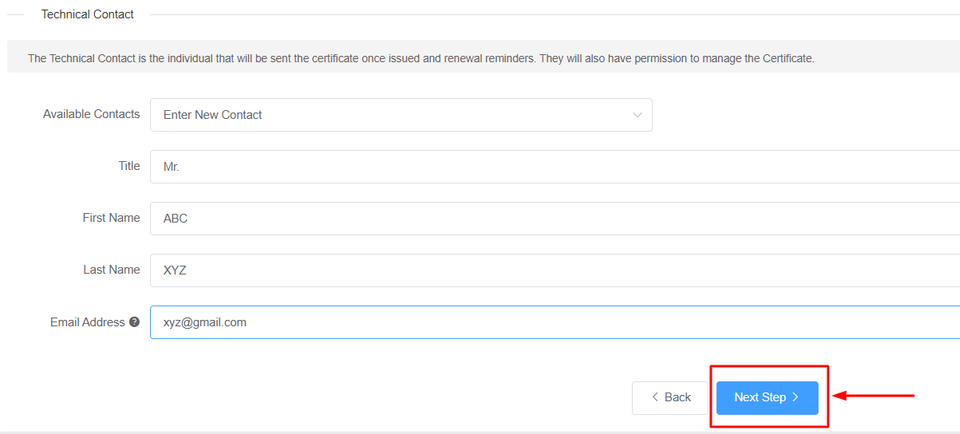
To obtain a business SSL certificate, you will need to provide your business details, including your correct address, phone number, and legal entity name. The Certificate Authority will verify the accuracy of this information. If there are any errors, they may delay the process. Then, click on Next Step
5: The next step in this process is Domain Control Validation (DCV). DCV, or Domain Control Validation, is a crucial step in SSL certificate issuance. It verifies that the entity requesting the certificate has control over the specific domain by utilising methods like email verification, file uploads, or DNS changes. This process ensures the legitimacy of SSL certificates and enhances online security.
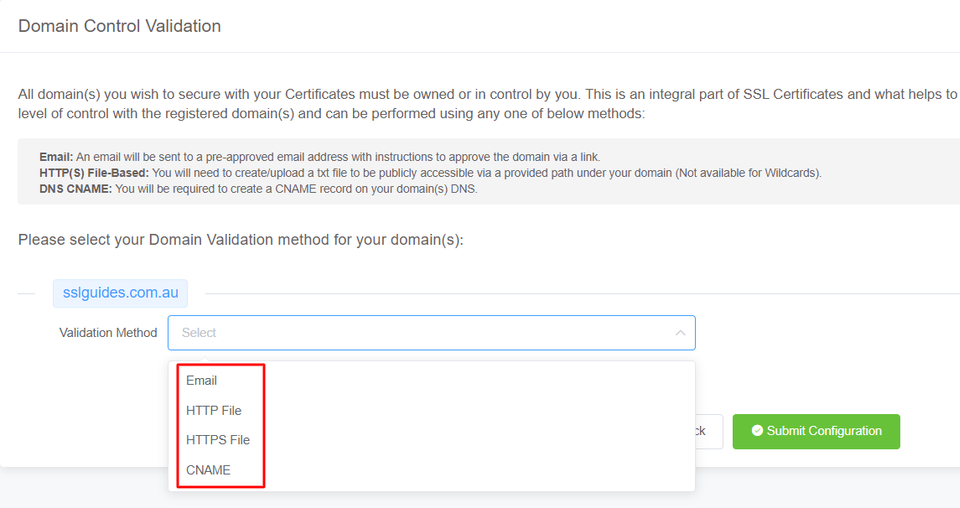
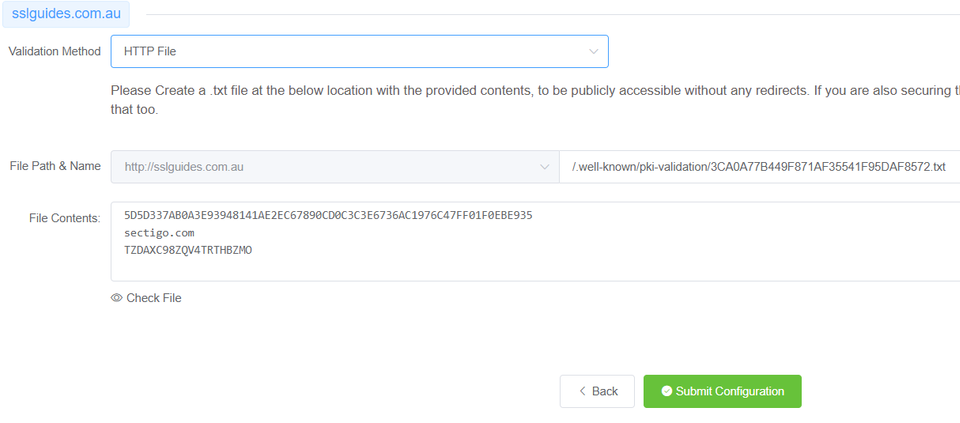
Select the method that is easiest for you. Having an email address with the domain name will be the quickest. You will be sent an email containing a link which when clicked upon should validate your domain name. In HTTP/HTTPS File Validation Method, you can create a folder in the specified and directory, paste in the contents and your domain should be validated.
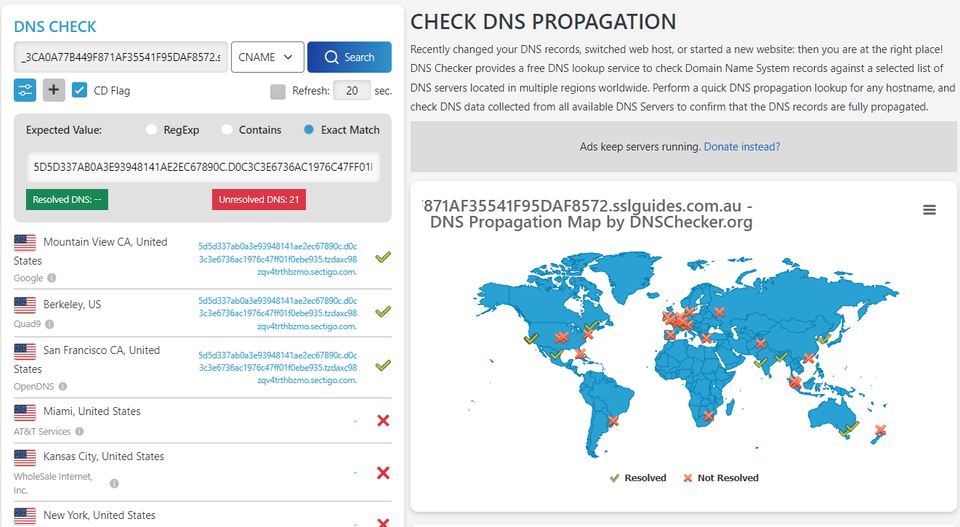
The final method to validate your domain name would be CNAME Validation. Basically you have to create a CNAME record in your DNS Settings to validate your domain name and then click on the Check DNS Record button to verify DNS changes.
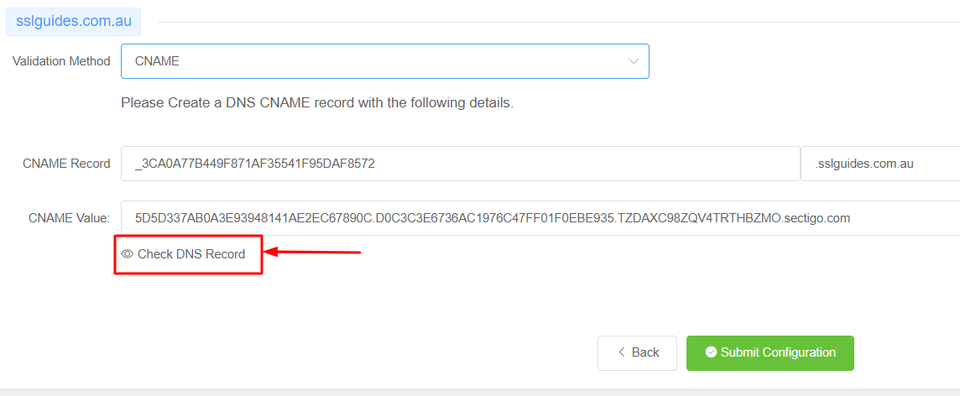
After a few seconds or minutes depending on your DNS propagation speed, the CNAME record should be verified.
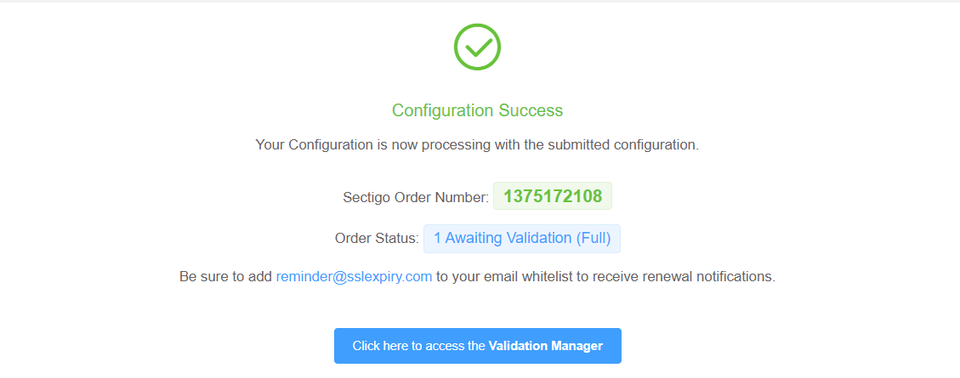
The configuration should be a success. Click on the button below to access the validation manager.
6: Your certificate should have now been issued if you completed all the above steps correctly.
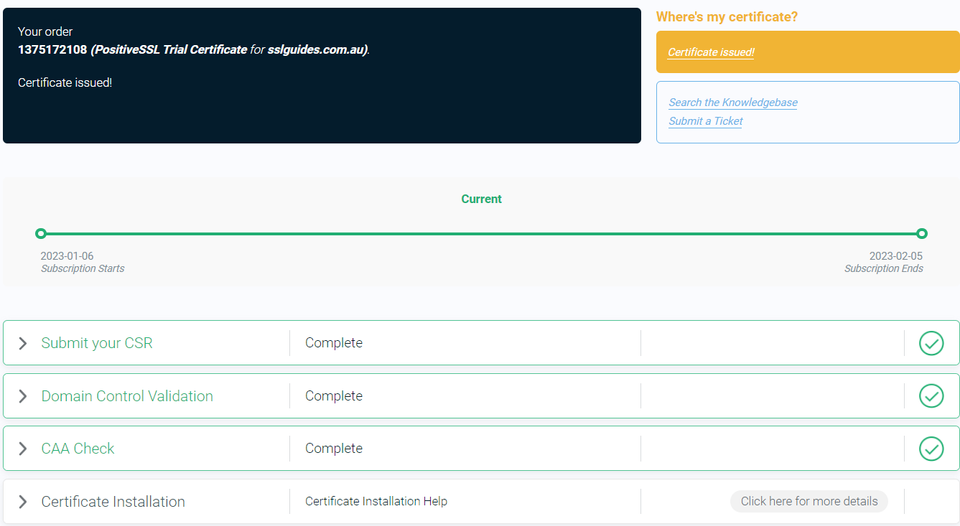
If not, click on Domain Control Validation, and re-submit whatever method you chose for validation. Once domain validation is complete using the chosen method, your SSL certificate will be issued. If you have ordered a Business SSL, you will need to wait for the Certificate Authority to verify your business address and phone number. If the validation process has not been completed, or you have not received your certificate after a set period, please contact the support team to check the status of your certificate.
Step 3. Upload the SSL Certificate Files to your OpenVPN Server
Once your SSL certificate is issued, you will receive an email from the Certificate Authority containing the certificate. Alternatively, you can download the certificate from the SSLTrust Portal, which provides it in a convenient, easy-to-use format. Again, head over to the SSLTrust Dashboard and click on your certificate:-
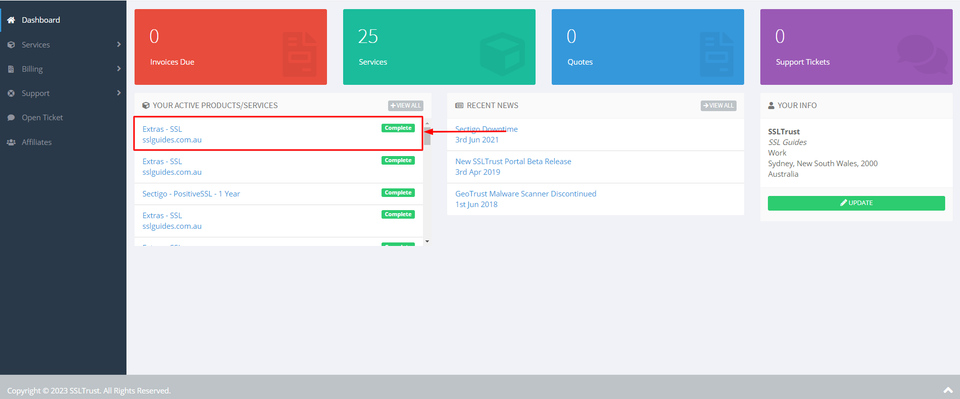
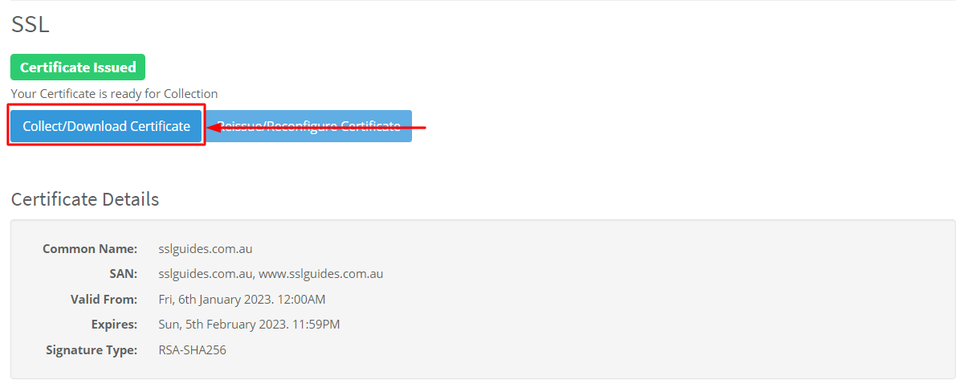
1: Click on Collect/Download Certificate-
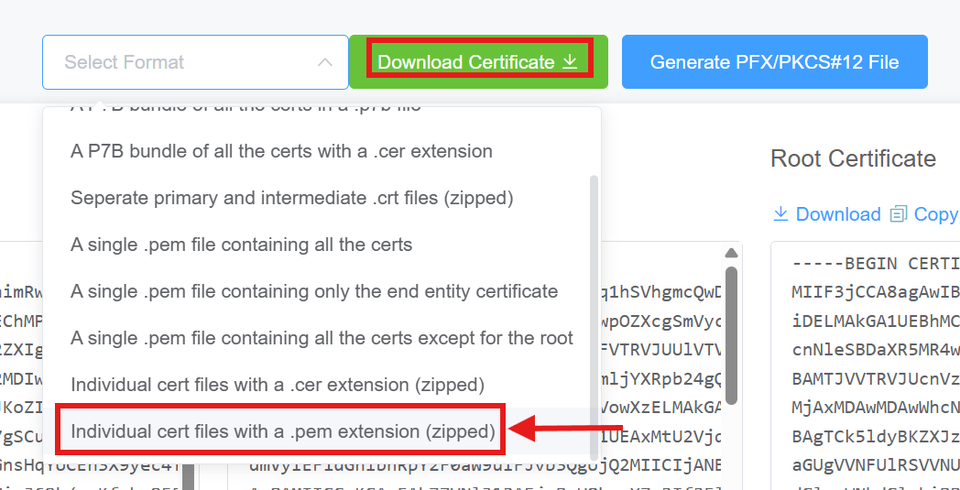
2: Select the format as Individual Cert Files with a .pem extension and then click on Download.
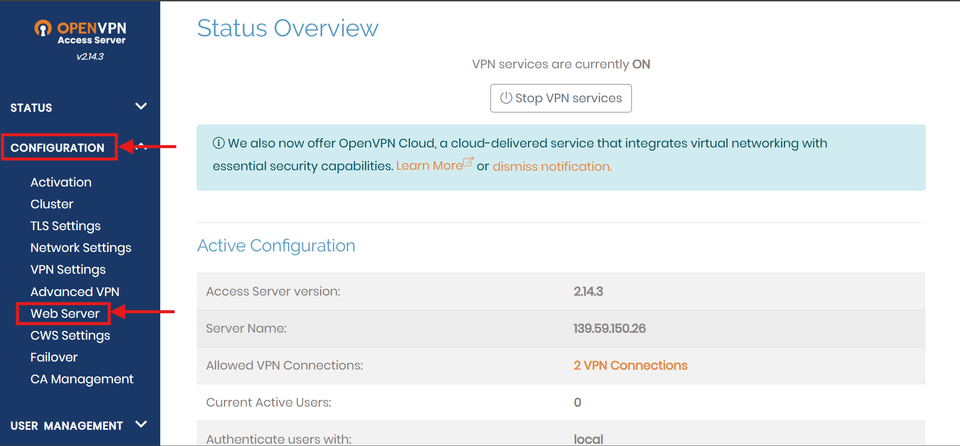
3: Login to your OpenVPN Server as Admin. On the left menu, click on Configuration to open the drop-down menu and then click on Web Server to change SSL Settings.
4: Scroll down and enable User-provided Certificate and then proceed to add all your files one by one in pem format starting with the main certificate and private key
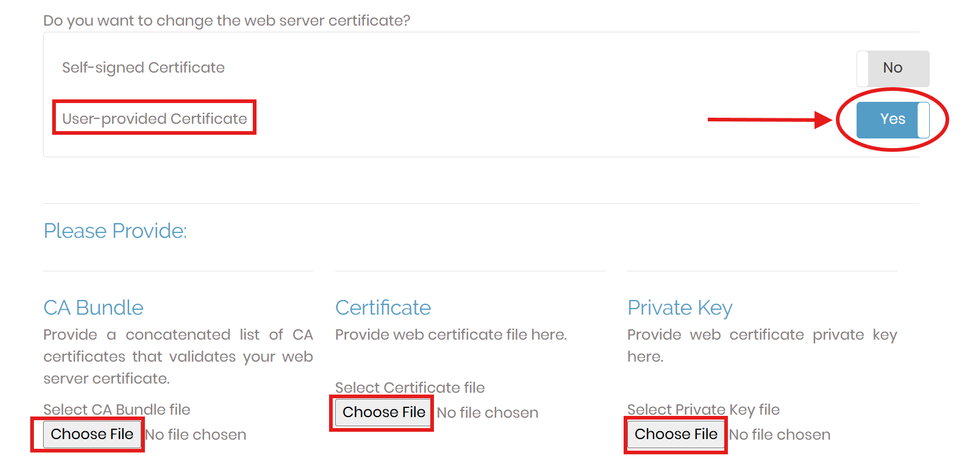
5: The intermediate certificate will be in 2 parts - intermediate-0 and intermediate-0. You will need to concatenate them to create one intermediate certificate with a .pem extension. You can do this with either a text or code editor. Then, upload to OpenVPN. Then, click on Save Settings .
Step 4. Check your SSL Certificate
After installing your certificate in OpenVPN, it’s crucial to verify that it’s working correctly and securely. SSLTrust’s Free SSL Checker provides an immediate, in-depth analysis of any domain’s SSL/TLS setup. Simply enter your server’s hostname to validate the certificate’s issuer, expiration date, encryption strength, and overall trust status across browsers and operating systems. A result showing an "A" rating confirms your SSL configuration meets the highest security benchmarks.
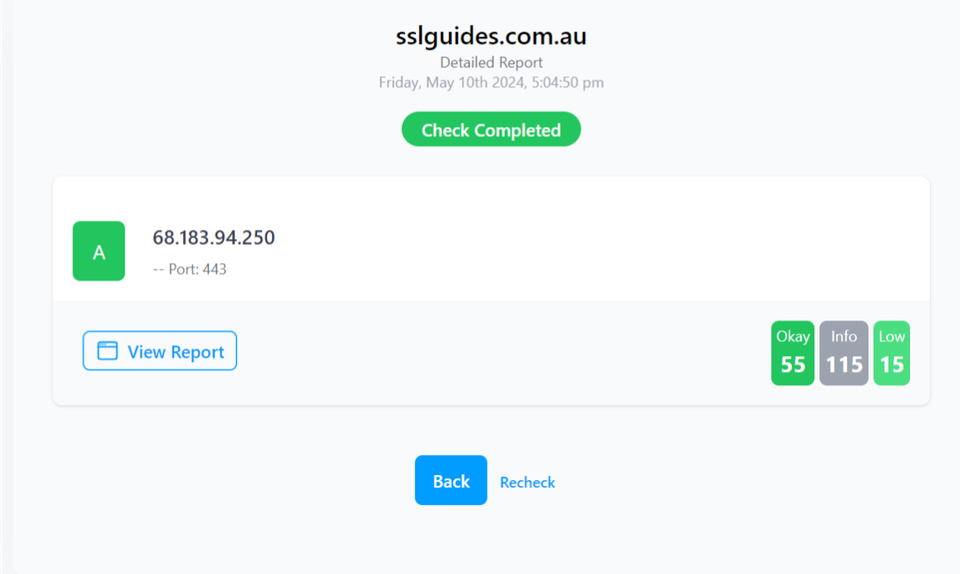
The tool automatically flags potential vulnerabilities or misconfigurations, such as weak protocols or improper chain installation. This gives you and your users confidence that the VPN connection is fully encrypted and protected from interception.
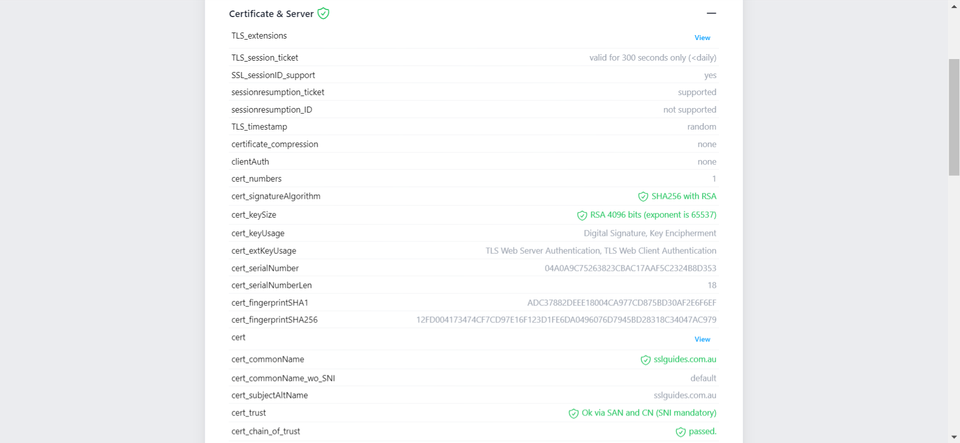
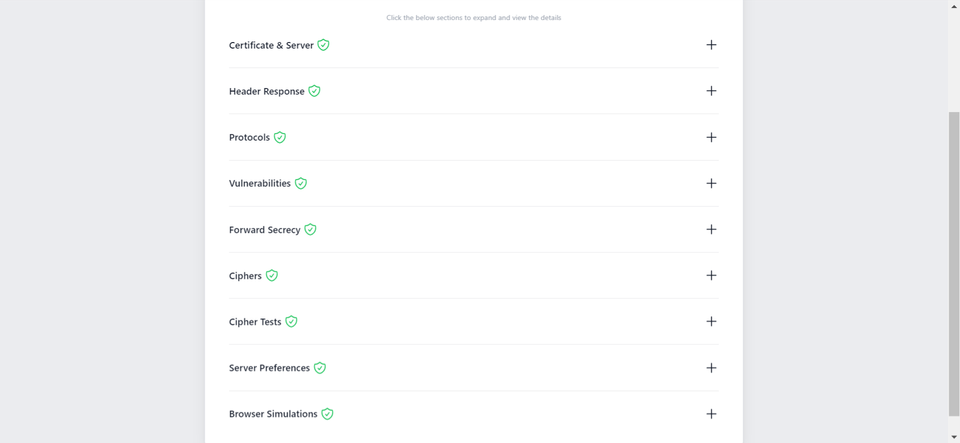
For a comprehensive security audit, use the detailed check option. It generates a comprehensive technical report covering supported protocols, cipher suites, and any identified vulnerabilities, providing clear insights to fine-tune your SSL implementation.
If the checker reveals issues, you may need to adjust your server configuration or ensure all services are correctly pointed to the HTTPS-enabled address. Should you require any assistance with your SSL installation or configuration, our support team is ready to help. Contact us here for expert guidance.
Discussions and Comments
Click here to view and join in on any discussions and comments on this article.